
User guide
How to use Momenta Fire QR Genie
A short walkthrough covering sign-in, generating a branded QR, archiving it to the shared Drive, and managing existing codes from the Manage page.
- 1
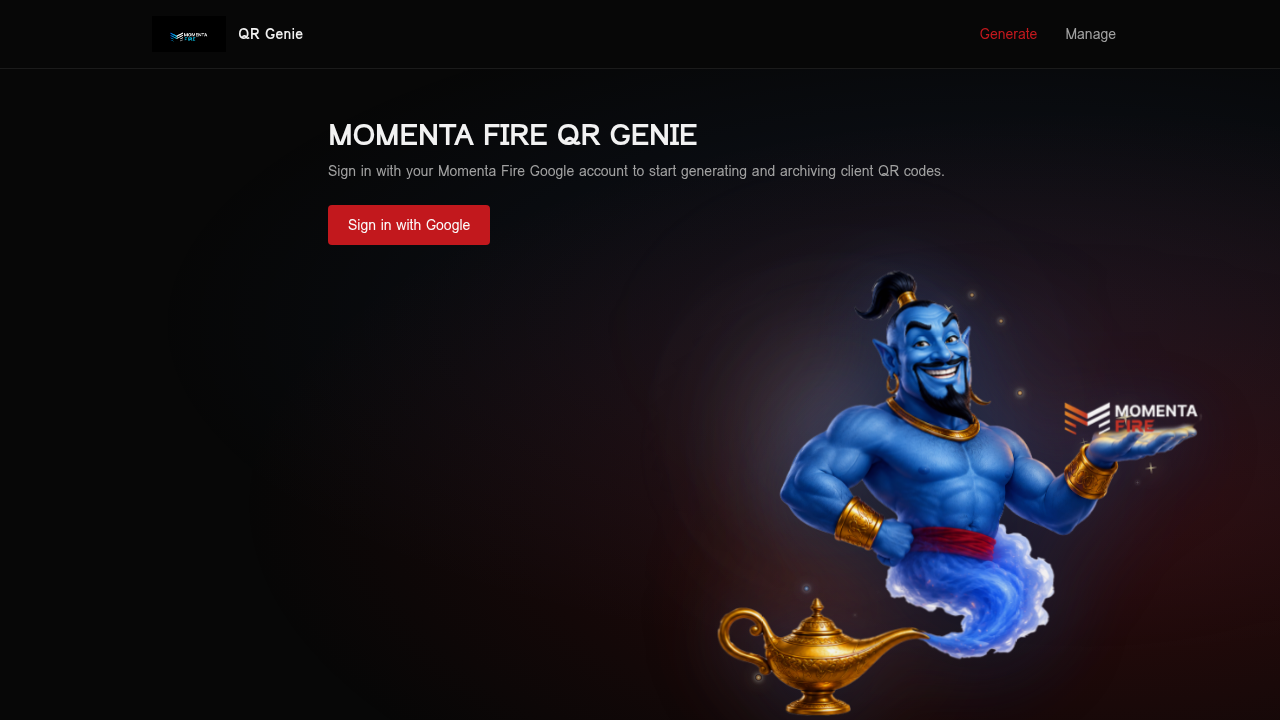
Sign in with your Momenta Fire Google account
Open QR Genie and click Sign in with Google. Use your Momenta Fire Google account so generated QR codes can be archived to the shared Momenta Fire QR code Genie Drive folder.
- 2
Connect Google Drive
On first use you'll see a Setup card asking you to grant Drive & Sheets access. Click Connect Google Drive and approve both scopes — this lets QR Genie write PNGs into the shared folder and append a row to the index sheet.
If you ever see Reconnect Google Drive, your previous consent is missing the new permissions — re-authorize once and you're done. - 3
Fill in client name and destination URL
In the Generate section, enter the Client name (used to label the file in Drive) and the Destination URL the QR code should ultimately point to. QR Genie creates a short tracking link for you — the QR encodes that short link, not the raw URL, so you can change the destination later without reprinting.
- 4
Optional: add a company logo
Use Company logo (optional) to upload a PNG, JPG, or SVG. The logo is centered on the QR with a white safe-area so scanners keep working. Click the ✕ next to the preview to remove it.
- 5
Generate the QR code
Click Generate QR. QR Genie pings the destination URL to confirm it's reachable, allocates a short link, and renders a high-resolution PNG (1024×1024, error-correction H) below the form.
A "did not respond OK" note is just a heads-up — the QR is still generated. Double-check the URL if you didn't expect that. - 6
Save to Drive and download
Click Save to Drive to archive the PNG (and your logo, if any) into the shared Momenta Fire QR code Genie folder, plus a row in the index sheet. Use Download PNG to grab a local copy for hand-off.
- 7
Manage existing QR codes
Open the Manage page to see every QR code you've created. Each row shows the client, short link, destination, scan count, and Drive file (if archived).
- 8
Edit a destination or re-download
Click Edit on any row to repoint the QR to a new destination URL — the printed code keeps working because it encodes the short link. Click ⬇ Download to regenerate and download the QR PNG on demand. If a Drive copy exists, ⬇ Drive downloads the original archived file instead.